Frequently Asked Questions About STA
On this page, you'll find answers to frequently asked questions about STA Software. Check out the topics below for help with logging in, projects, check-in points, reports, notifications, and more.
Check-in Points and Communication
Will the action owner receive a notification when I check off a checkpoint?
Yes, if the appropriate notification for the campaign owner is enabled.
An administrator can check this:
Go to Relationships → Contacts.
Open the relevant contact.
Go to Notifications.
Check whether the “Fully Checked” notification is enabled.

How do I start a chat at a pickup point from the STA App?
Open the STA App.
Select the desired project and recording type.
Open the relevant recording point.
Tap the plus sign on the right to start a new chat.
Select the person you want to chat with.
Write your message and send it.
Note: Once a recording has been signed by the second person, you can no longer start a new chat at that recording point.
Who can I chat with at a recording point?
Using the messaging feature, you can communicate with people involved at a recording point from the STA Portal, the STA App, or STA Ready Report. For example, you can start a chat with:
the action owner;
the quality assurance officer or evaluator;
the person who created the intake point;
a client;
another relevant contact person.
External parties can also start a chat, as long as the entry point is visible to them or has been shared with them.
You can also view the history at the entry point. Here you can see what changes and additions have been made over time.

Will I receive a notification when a new chat message is posted?
Yes, you can receive a notification when someone posts a message at a recording point. The notifications you receive are determined by your notification settings.
An administrator can check and adjust these settings via “Login and Permissions.” You’ll find the chat messages on the right side of the recording point.
How do I close a chat at a recording point?
You don’t need to close a chat manually. The chat closes automatically as soon as the recording is finalized with a second signature.
Can I add files to a recording point?
Yes. Open the recording point and select “Files” to add a document.
The file will be sent as an attachment with the report email. The PDF report will include a reference to the corresponding attachment.
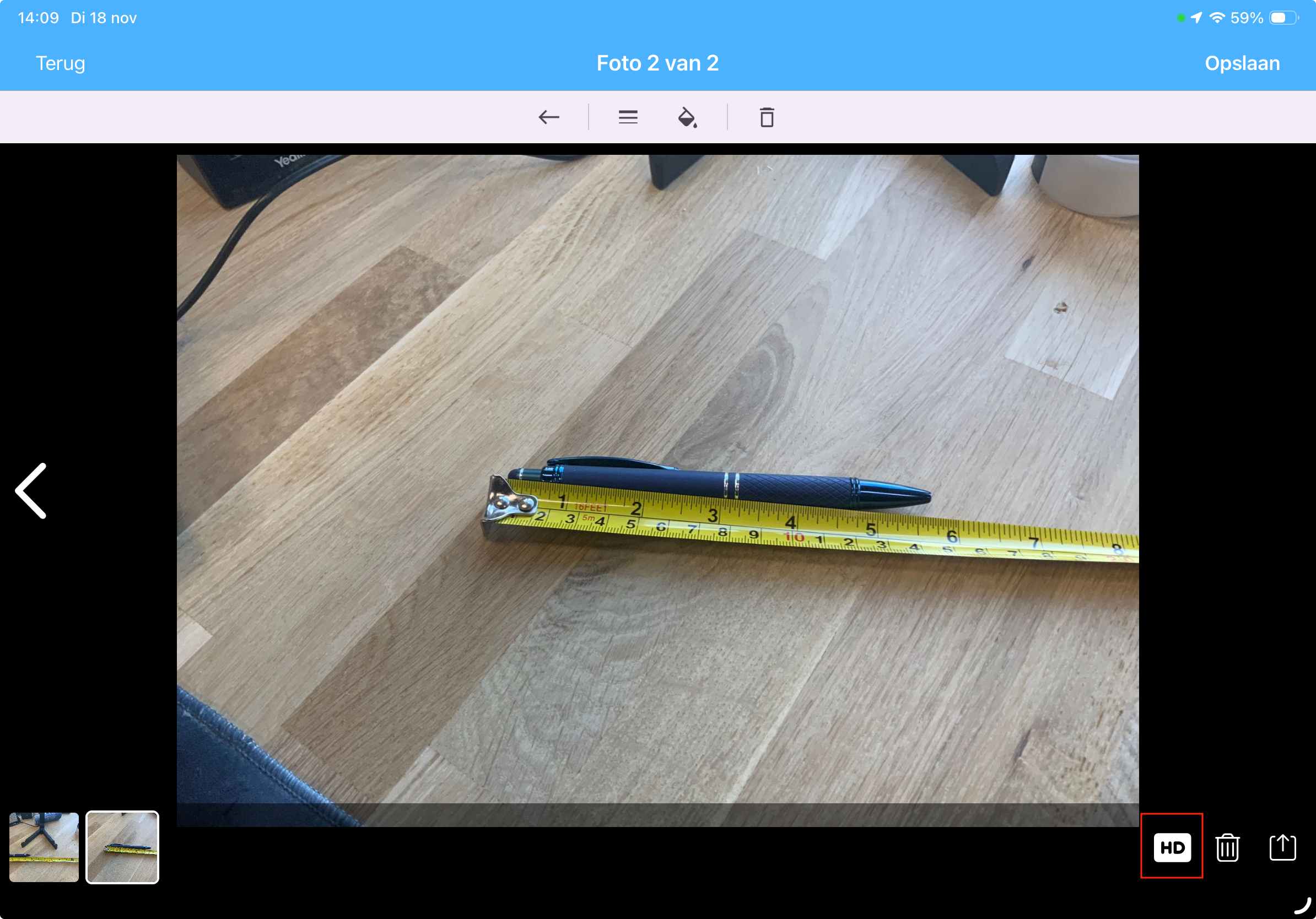
What does the HD icon next to a photo mean?
By default, photos from recording points are included in the PDF report at a lower resolution. This keeps the report smaller and faster to download.
Want to see more details? Then enable the HD option for the photo in question. Keep in mind that this will make the PDF file larger.
In the STA App
After you take a photo, you can edit it. Tap the HD icon at the top of the editing screen. You can also open an existing photo associated with a recording point and convert it to HD.
In the STA Portal
In Live Management View, add a photo to the recording point and select HD. You can also open an existing photo and enable the HD option.
Login and Account
Why can’t I log in?
First, check to make sure you have a working internet connection.
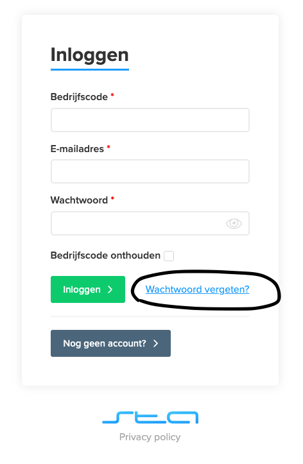
Does the STA Portal or STA App indicate that your login credentials are incorrect? If so, check that you’re using the correct information:
your company code;
your email address;
your password.
Are your company code and email address correct? If so, select “Forgot Password?” to set a new password. You’ll then receive an email with further instructions.
What is my company code?
Your company code is a unique three- or four-character code associated with your organization. You use this code to log in to the STA Portal and the STA App.
If you are not logged in
You can find the company code in the welcome email you received from STA Software. Can’t find that email anymore? Then ask an administrator within your organization for the company code.
If you’re already logged in
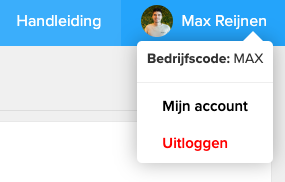
In the STA Portal, click your name in the top-right corner.
In the STA App, tap the gear icon in the bottom-left corner to go to Settings.
How do I log in to the STA Portal?
After you’ve received an invitation, you can log in to the STA Portal:
Go to portal.stasoftware.nl/login.
Enter your company code.
Enter your email address and password.
Click Log In.
Having trouble logging in? First, check your company code and email address. Then select “Forgot your password?” to create a new password.
How do I change my account information?
Log in to the STA Portal.
Click on your name in the top-right corner.
Go to My Account.
Update the desired information.
Here you can manage your profile photo, email address, password, notifications, and two-step verification, among other things.
How do I manage my notifications?
STA Software may send you notifications regarding, for example, warranty notices, security alerts, and app licenses.
You can manage these notifications as follows:
Log in to the STA Portal.
Click your name in the top-right corner.
Go to My Account.
Turn the desired notifications on or off.
Projects and Contacts
Why can’t I see all projects?
Which projects you can view depends on your permissions. Depending on your settings, you’ll see:
all projects within the organization; or
only the projects to which you are assigned as a project team member.
Do you need access to a project? Ask an administrator to add you as a project team member or to adjust your permissions. An administrator can do this via Relationships → Contacts.

Why can’t I see archived projects?
Archived projects are still visible in the STA Portal, but not in the STA App.
Do you want to work on an archived project again? Open the project in the STA Portal, click More, and select the option to unarchive the project.
Can I add a contact without a company?
Yes. When creating or editing a contact, you can select “No company” in the company information section.

Reports and Exports
Why is there a limit of 300 photos when exporting from Live Management View?
This limit prevents the export file from becoming too large.
Do you want to download more than 300 photos? Then filter the survey points further, for example, by construction number. You can also manually select the desired survey points:
Check the relevant survey points.
Click Export.
Select “Export Photos.”

What are reports?
Under Reports in the STA Portal, you’ll find the survey reports generated from your projects. A report is created after a survey has been signed.
A report includes, among other things, the survey data and the corresponding survey points. From the reports overview, you can:
view reports;
download reports;
send reports;
check who a report was sent to.
Go to Settings → PDF Report Templates to specify which personal data may be displayed in the reports.
What are meter readings?
During an internal pre-inspection or final inspection, you can record meter readings for:
gas;
water;
electricity;
heat.
The meter readings can be included in the inspection report. In the STA Portal, you can find the recorded data under “Meter Readings.” From this overview, you can export the meter readings to Excel or PDF.
What are key declarations?
Key declarations allow you to record, during the handover of a construction project, which keys were handed over and which keys were retained.
You can add keys in advance for each project. During handover, you can select these keys and have the key declaration form signed.
In the STA Portal, the “Key Declarations” menu displays all signed forms for each project. From this overview, you can download a form or resend it to a relevant party.
Support
How do I upload my app database to STA for support?
Click the gear icon in the bottom-left corner at the start of the app
At the bottom of the screen, click the “Help Mode” circle
Click the blue text “Upload database to server”
After a short while, the database will be uploaded
Find help and updates via the chat bubble
Open the chat bubble in the STA Portal to ask the AI assistant a question. The assistant uses the knowledge base to provide answers. Would you like to speak with a staff member? Let us know in the chat.
Through the same window, you can view the knowledge base, the latest updates, and your previous messages. The Portal may also display a notification when a new monthly update is available.
Switching Between Pro4all Applications
Use the app launcher to switch between the available Pro4all applications. This launcher does not guarantee that you’ll be able to log in to all applications with a single login; single sign-on was mentioned as the next step when the feature was announced.
Where is STA data hosted?
STA is hosted entirely within the EU. Following the migration to Brevo, email delivery is also handled by a provider that processes and stores data within the EU.
Help with issues
Was this helpful?
Still need help? Ask the team